Install IPTV on TiviMate on Fire TV Stick (Step‑by‑Step):
TiviMate Firestick setup with M3U or Xtream Codes—screenshots, playlist import, EPG tips, and common fixes.
Follow these steps below to install TiviMate.
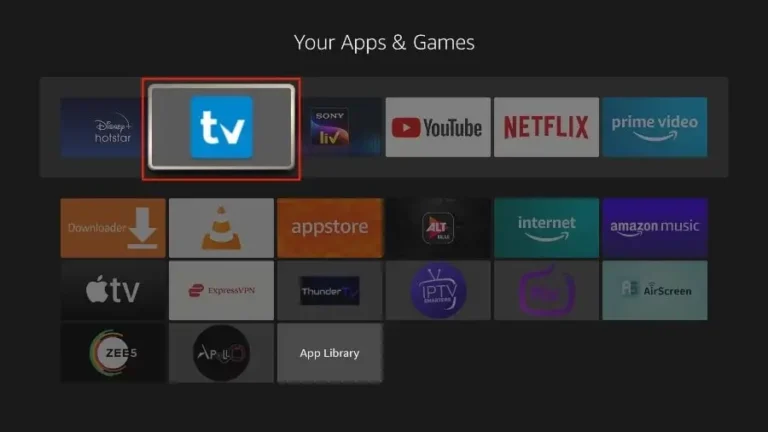
1. Go to the Apps menu page from the FireStick Home page.
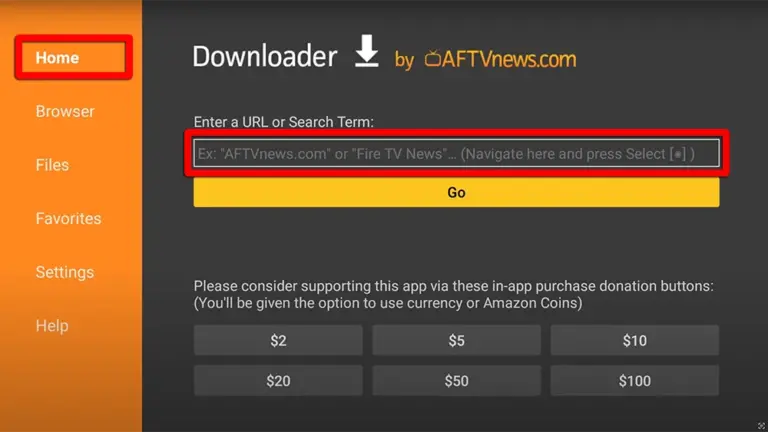
2. Open the Downloader app and select Enter a URL on the Home screen.
3. Type the following code exactly as shown here: 366972 to download Tivimate.
4. Click “Install” when prompted.
Effortless Configuration Guide for TiviMate: Enjoy Your IPTV Instantly
1. Open the TiviMate app.
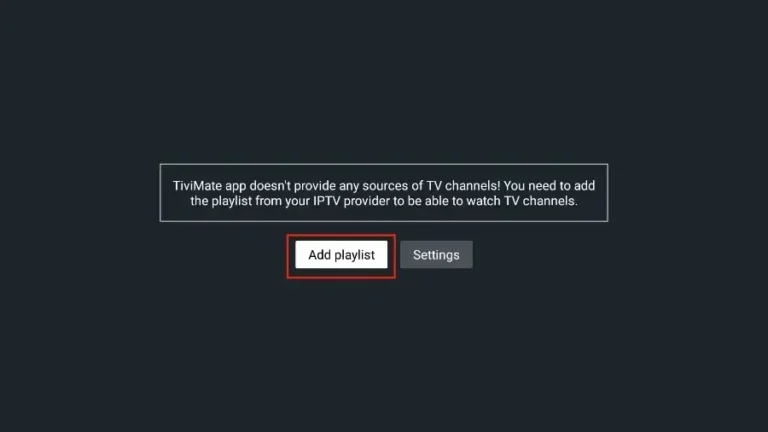
2. Select “Add playlist“.
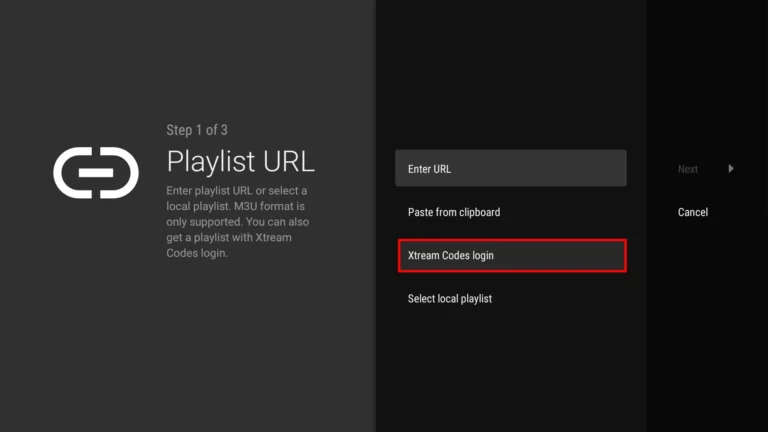
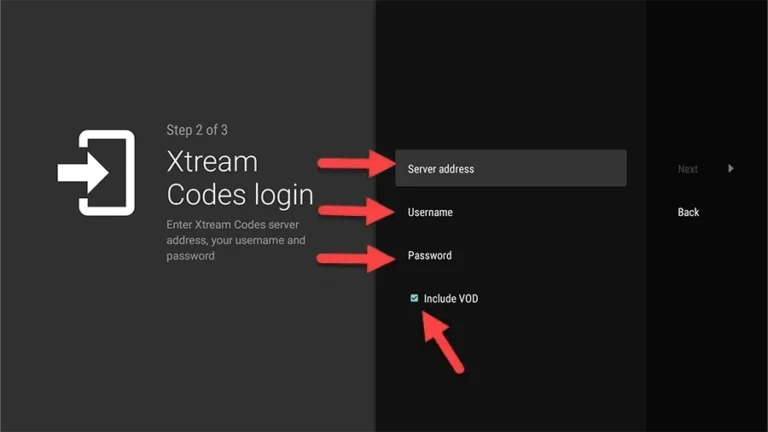
3. TiviMate will prompt you to add a playlist using an Xtream code, M3U link or Stalker portal. Click on “Xtream Codes login” and then “Next“.
When you subscribe to IPTV LEVEL UP, you’ll receive an email containing your login details. Get your subscription Here and use your Xtream Codes login credentials (Server Address, Username and Password), then check “Include VOD” if you want VOD content.
Go on and the channels will appear after a while
Congratulations! You’ve now completed the setup of the TiviMate app for seamless streaming.
Important About TiviMate App!
You can access Live TV channels solely through TiviMate as it requires a premium subscription for added features like adding channels to favorites, recording and watching movies and series. Despite the subscription requirement, TiviMate offers great value and superior functionality compared to other apps, which is why we highly recommend it for the best service experience. (You can use the app on a maximum of 5 devices)
If you want to pay TiviMate premium subscription, please follow these quick easy steps:
Step 1:
Access the Play Store on your Android Smartphone or Tablet. Download the TiviMate Companion app, open it, and select “Account”. Create your account and proceed with the payment. The price for lifetime access: $29.99 The price for yearly plan: $9.99
Step 2:
Launch the TiviMate app on your Fire TV Stick, access settings, choose “Unlock Premium” and input the account details created in TiviMate Companion. This will grant you complete access to the TiviMate app.