

IPTV Not Working? Quick Fixes & Troubleshooting Guide (2025)
Streaming stops. The screen freezes. Your IPTV not working issue shows up right when the big game starts.
It is frustrating. But here is the good news: most of these problems are not permanent. A few quick checks and tweaks can usually bring your service back to life.
In this guide, we will cover the most common reasons IPTV fails, why it happens, and what you can do right now to fix it. By the end, you will know how to handle almost any IPTV not working error.
Why IPTV Stops Working
IPTV relies on your internet connection, your device, and the servers delivering content. If one of these has a hiccup, you see the dreaded IPTV not working message.
It could be as simple as weak WiFi or as complicated as a device software clash. Sometimes your subscription IPTV link needs to be refreshed. Other times the app itself has to be reinstalled.
People often ask why is IPTV not working and the truth is that there is no single answer.
But most of the time, the problem sits in one of three places: your connection, your device, or the IPTV provider’s server. Knowing this helps narrow things down and saves time.
Start With the Basics

When IPTV does not work, you should not panic. The first step is always simple. Test your internet speed. IPTV usually requires at least 15 Mbps for smooth HD viewing. If your speed drops, the stream freezes. Try restarting your router; sometimes that alone fixes the problem.
The second step is restarting the device itself. Whether you are using a smart TV, Firestick, or Android box, a reboot clears temporary errors. You would be surprised how often this resolves IPTV not working complaints.
Next, confirm your account status. If your subscription has expired, your IPTV is not working problem will not be solved with technical tricks. Visit IPTV Level Up to make sure your account is active and your plan is valid.
IPTV Not Working on Firestick
One of the most common questions is why is IPTV not working on my firestick. Firestick is popular, but it can sometimes create issues. The app cache can fill up, leading to slow performance.
Clear all cache and the data of the app to see if it brings the app back to normal.
If the issue continues, uninstall the app and reinstall it fresh. While you are at it, check that your Firestick firmware is updated. Outdated firmware can stop apps from working properly.
When IPTV not working issues hit Firestick, a two-step process solves the majority of cases. And it is to reinstall and update.
Buffering Problems
Sometimes your IPTV subscription might not work due to endless buffering.
This is not just annoying; it ruins the viewing experience.
Buffering can often mean your WiFi is weak. If you are wondering why IPTV not working on wifi, it could be because your device is too far from the router or too many devices are connected.
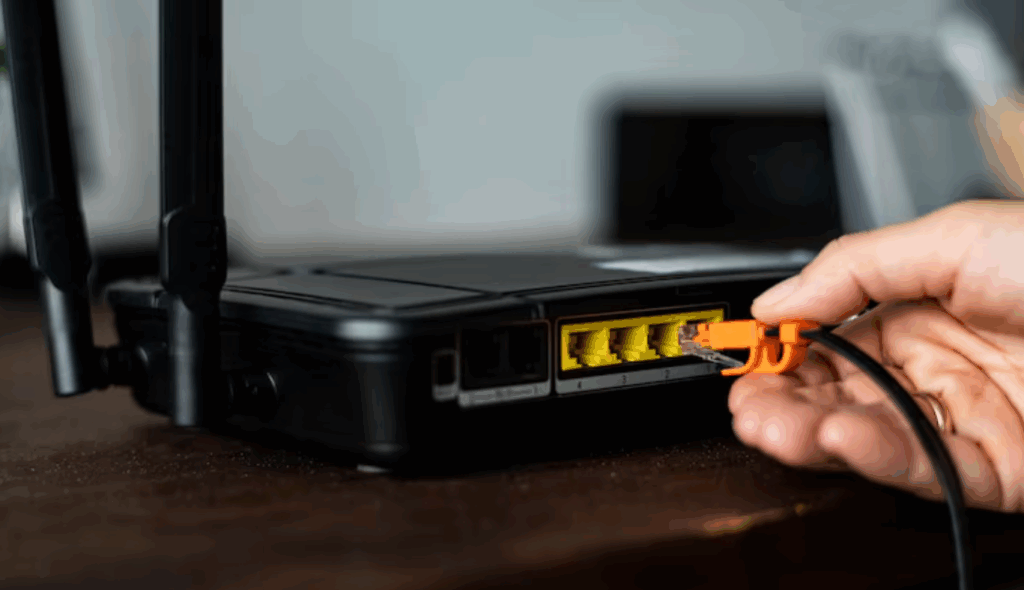
To fix this, move closer to the router or switch to a 5GHz network if available. Better yet, use an Ethernet cable for a stable connection. You can also try reducing video quality settings. After all, it is better to watch without interruptions than to stare at a frozen HD frame.
App Updates and Crashes
Updates are meant to improve apps, but occasionally they cause more harm than good. After an update, you might find IPTV not working at all. If this happens, clear the app’s cache or reinstall it entirely.
Also check compatibility. Some older smart TVs or boxes may not support the latest app versions. This leads many to ask why IPTV is not working on Samsung TV. In those cases, updating the TV firmware or using an external player like IPTV Smarters or TiviMate may be the only fix.
Certain Channels Not Loading
Not all problems mean a total outage. Sometimes IPTV does not work only for specific channels. This can be caused by temporary server downtime or changes in channel sources. Restarting the app or reloading the playlist often solves this.
Refreshing your EPG guide is also a good idea. IPTV Level Up provides thousands of channels; if one is down, chances are another channel carries the same event or program. So instead of worrying about why IPTV is not working on one channel, look for alternatives in the lineup.
Login and Account Issues
When IPTV not working appears as a login error, the fix is usually straightforward. Double-check your username and password. Copy-paste errors are common, especially with M3U links. If you keep getting denied, make sure you have not hit a multi-device restriction.
Visit IPTV Level Up to confirm your plan and see if device limits apply. If the issue continues, reach out to customer support. They can reset your account details if needed.
Using IPTV Abroad or With VPN
Some users find IPTV is not working when traveling. This is often due to something called “geo-blocking.” Geo-blocking essentially means a website is not allowed to operated in a certain country or location.
You can use a VPN to help bypass these restrictions, but sometimes VPNs themselves create problems. Hence, if you do notice IPTV not working on wifi while using a VPN, you can try disabling it and reconnecting.
For frequent travelers, IPTV Level Up works across multiple regions, but you may need to adjust your VPN settings. Switching servers closer to your provider’s base usually improves performance.
Advanced Fixes When IPTV Still Does Not Work
If you have tried all the basics and your IPTV not working error still remains, it is time to dig deeper. Reset your router or modem to refresh the connection. Change your DNS settings to Google DNS or Cloudflare for faster resolution.
Testing IPTV on another device can also be revealing. If it works there, the issue is with your primary device. Players like TiviMate or IPTV Smarters often work better than default apps. Follow the detailed setup guide to make sure your installation is correct.
Preventing Future Problems
The best fix is prevention. Keeping your apps updated reduces crashes. Regularly clearing cache avoids storage overload. A strong, stable internet connection is non-negotiable for IPTV.
If you often ask what to do if IPTV is not working, make these habits part of your routine. They reduce the chances of hitting major issues during your favorite show or big game.
When to Contact IPTV Level Up Support
If none of the fixes work, then your IPTV not working issue may be out of your hands. This includes server outages, billing problems, or subscription errors. That is when you need the experts. IPTV Level Up has a dedicated support team available 24/7. You can contact them anytime through their support page.
Do not spend hours frustrated; let the team solve it while you sit back and get ready to enjoy your shows again.

Conclusion
Streaming should be smooth, not stressful. With these steps, you can handle nearly every IPTV not working issue quickly. From weak WiFi to outdated apps, there is always a fix. And when things go beyond your control, IPTV Level Up support has your back.
Next time the screen freezes, you will know what to do.


